Adjusting player latency
If you’re using Soundslice with external audio output — such as Bluetooth speakers or an overhead projector — you might experience latency, a delay between when Soundslice plays audio and when you actually hear it.
Latency is an unfortunate fact of life for certain speaker setups, and it’s especially annoying for a tool like Soundslice where it’s important for sound and visuals to line up.
Fortunately, our player lets you specify your latency to compensate for this — hence ensuring sound and visuals are indeed aligned nicely.
How to adjust latency
When viewing a slice, open the settings panel via the button at lower right of the player. Look for the “Audio latency” section, and click it to open it:
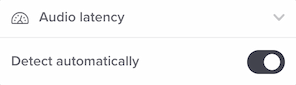
By default, our player will try to automatically calculate the latency for whatever speaker or headphones you’re using. In general, this should handle most situations and you won’t have to tweak things.
But if you’re having latency issues, uncheck the box for “Detect automatically.” This will give you an interface to set it manually:
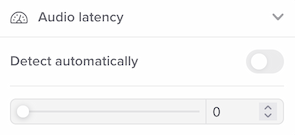
Move the slider rightward to increase the latency value. You’ll see the number increase at right.
You can also type in an exact number instead of using the slider. This number represents the latency in milliseconds.
Changes are reflected immediately, so feel free to tweak this during playback.