Volume control
To change the volume of audio or video, open the player settings via the button at lower right, then use the Volume slider at the top:
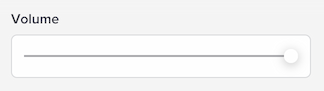
This is the master volume. You can also change the volume of specific aspects of Soundslice:
| Volume | How to change it |
|---|---|
| Master volume | Use the Volume slider in player settings. |
| Instrument-specific volume | Switch to synth playback, then use the Instruments menu in player settings. |
| Metronome volume | Use the volume slider in the metronome tooltip. |
| Synth overlay volume | Use the synth overlay volume slider in player settings. |
Volume on iOS devices
If you’re using an iPhone or iPad and you’re viewing a slice with video, you won’t be able to set the volume using our player controls. That’s due to an Apple limitation: they don’t allow websites to control video volume. You can use the physical volume button on your device instead.
All other types of playback (synthetic playback and synced MP3s) do indeed support setting volume using our player controls on iOS.
Can Soundslice save my preferred volume?
Yes! If you’re logged in and have a paid Soundslice account, we’ll automatically save the master volume so your practice environment will be preserved next time you view that slice. The volume is saved on a per-slice basis.