Wait mode
In wait mode, you can connect a MIDI device to Soundslice and get interactive feedback about whether you’re playing the correct notes. It’s a simple way to test your accuracy, especially handy for beginner pianists.
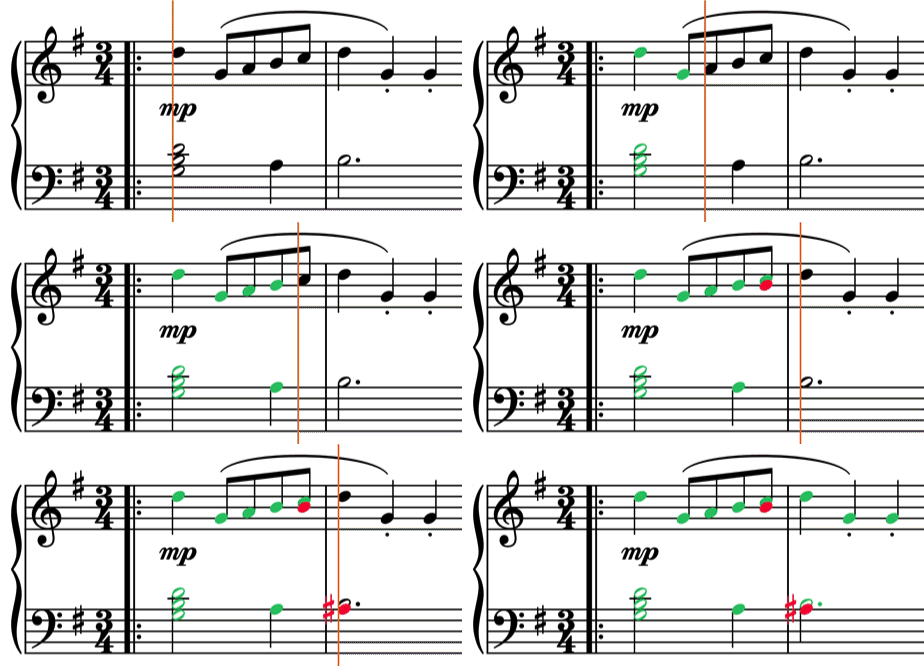
When you play a note, we’ll color it green if you played it correctly. If you play a wrong note, we’ll show the note in red, so you can see your wrong note in context.
Wait mode doesn’t listen to your tempo or rhythm; it simply checks whether you played the correct note(s) corresponding to your current position in the music. The playhead always stays stationary, waiting for you before advancing. (That’s why it’s called wait mode!) You’re free to play completely out of time, or you’re free to play to a metronome — either way works.
You can use wait mode for any music in Soundslice, whether it’s something a teacher shared with you, or music you’ve created via our editor, or music you’ve imported via MusicXML or PDF/image scan.
Wait mode is available for customers in any of our paid plans, even the cheapest one.
Activating wait mode
To active wait mode, make sure you’re logged into your Soundslice account, then view a slice and open the notebook by clicking this button at upper right:

In the notebook, look for the “MIDI feedback” section and click “Wait mode.”
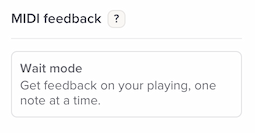
You’ll see the setup screen:
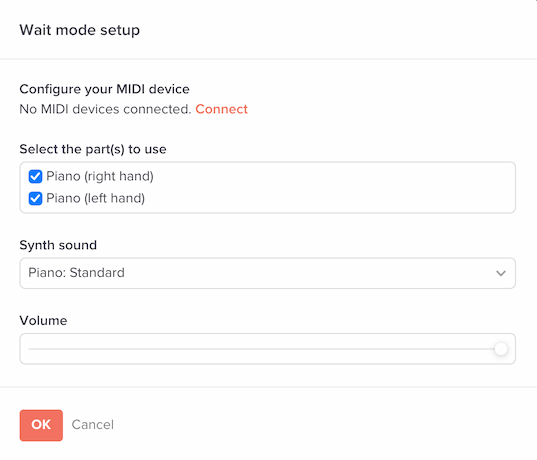
The options are:
- Configure your MIDI device — Make sure your MIDI device is connected, then press Connect. Your web browser will ask your permission for Soundslice to connect via MIDI. When you’ve given permission, you’ll see your MIDI device name here. (Tip: tell your browser to remember that preference. That’ll save you a few seconds next time.)
- Select the part(s) to use — Choose the specific instruments that you want us to listen for. For grand staff instruments (such as piano), note you can select just one of them, or both of them together. This lets you practice, say, just the left hand part.
- Synth sound — Choose the synthetic playback sound to use when you play a MIDI note.
- Volume — Set the volume of the synthetic playback. If your MIDI device has its own speaker, feel free to set this to zero. Otherwise both Soundslice and your MIDI device will both play the audio, which is a bit of a cacophony.
After that, press OK and you’ll be good to go. (And don’t worry, you can always return to this setup screen to make changes.)
Using wait mode
We’ve designed wait mode to be deliberately lightweight and open-ended, so you can practice iteratively and interactively. It basically comes down to this:
- You’ll be graded on whatever note(s) the playhead is currently at.
- Once you play all the correct note(s) at that position, the playhead will advance.
- At any time, you’re free to click on the notation to move the playhead anywhere else in the music.
- Click “Restart” to clear all your green/red notes and move the playhead to the start.
There’s no scoring, no badges and no gamification. Feel free to invent your own scoring — knock yourself out. But we encourage you to develop intrinsic motivation rather than becoming dependent on a machine giving you scores.
Reaching the end of the piece
When you’ve reached the end of the piece, all the notes will still be green/red, so you’re free to review which parts of the music gave you the most trouble. When you’re ready to try again, click “Restart” at the top, and we’ll reset all the colors.
Pro tips on using wait mode effectively
With wait mode, you get the full power of the Soundslice’s interactive notation. Here are some possibilities, to get your creative-practice juices flowing:
- Experiment with different notation layout. Horizontal layout is a particularly nice fit for wait mode. Also consider setting “Keep playhead in middle of screen” (see here).
- Our Appearance panel lets you hide specific notations or instruments you don’t care about. And you can activate automatic pitch names or note colors if that’s helpful.
- Focus mode and clips work in wait mode. These are a way to show only a few bars’ worth of music instead of the whole piece, making it easier to drill a particular section.
- For visual learners: our visual piano keyboard shows you exactly which notes we’re expecting you to play, directly below the music.
- In music with repeats, consider enabling expand repeats so that you continuously move rightward rather than jumping around.
- Yes, wait mode even works with image layout — meaning you can use your own PDF/photograph instead of the Soundslice rendering of your music. The only difference is we don’t color the notes.
Is there a prize for practicing until all the notes are green?
Yes! The prize is you become a better musician.
What devices does this support?
It works well on computers running Google Chrome, Microsoft Edge or Mozilla Firefox, plus Android devices.
Unfortunately it’s not supported on iOS. Apple is a bit behind technologically and doesn’t provide the necessary MIDI support on iPhones or iPads.
What instruments does this support?
This supports any instrument that has MIDI output. In practice, mostly this is a piano/keyboard thing, but you can also use it with MIDI drums, guitars, etc.