Starting a PDF/image import
To start a PDF/image import, make sure you’re logged into your Soundslice account. Then go to your homepage and click “Create slice.”
You’ll see the options for slice creation. Choose “Start with a scanned image:”
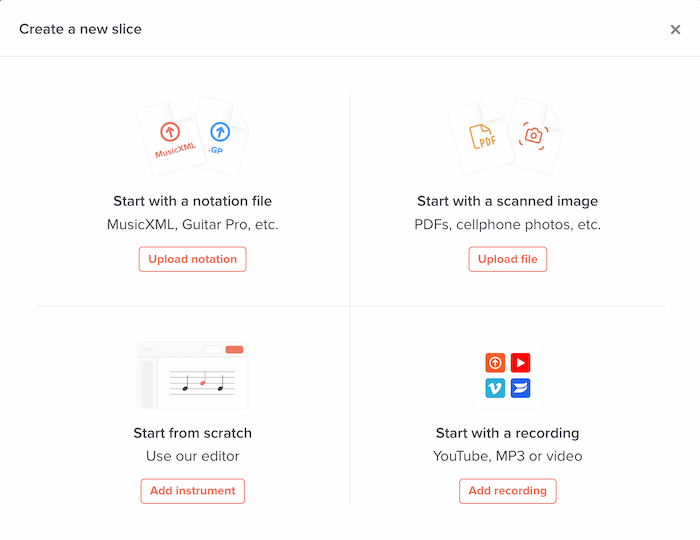
The upload page
You’ll see a new page with a simple upload form:
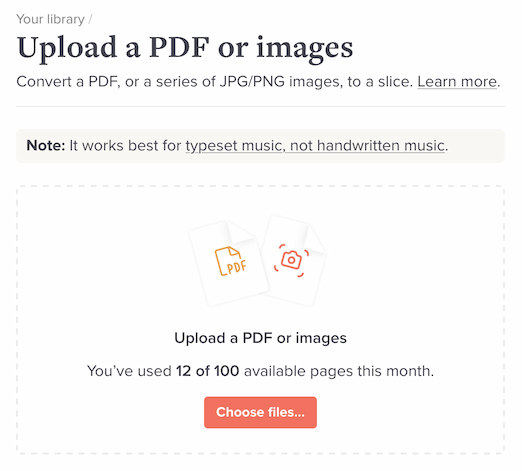
Drag a file onto this area, or click “Choose files.”
We support the following types of files:
- PDF documents
- BMP images
- GIF images
- HEIC images
- JPG images
- PNG images
- TIFF images
- WEBP images
Previewing your upload
After you add a file, we’ll show you a preview of it:
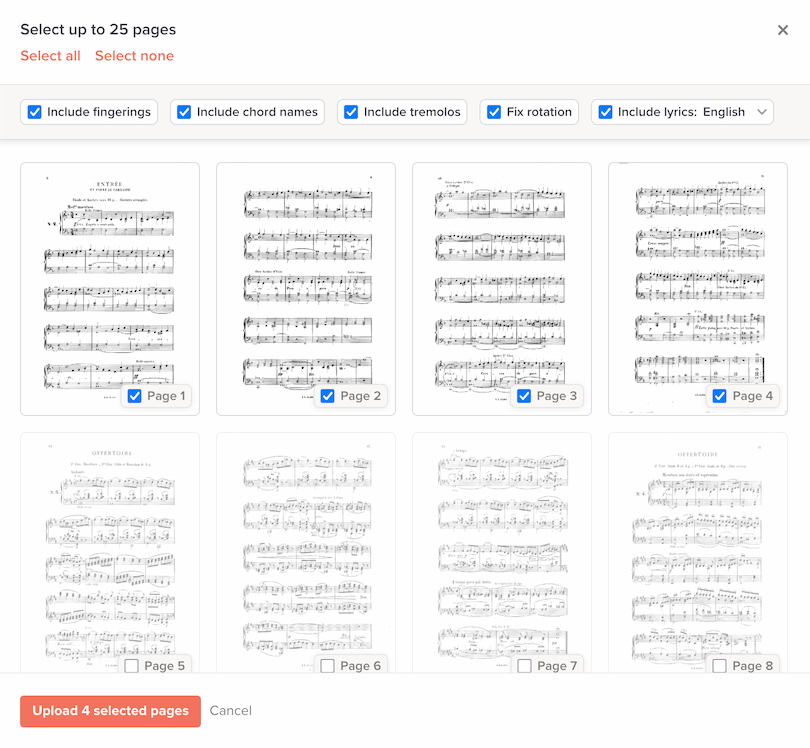
For PDFs: you’ll see all of the pages in the document. Select the pages you want to import. We’ve got “Select all” and “Select none” shortcuts at the top.
For images: we’ll show you the image you selected. Choose “Select more” to add more images. All of your images will be processed together as a single piece of music, in the order in which you selected them.
Upload options
At the top of that preview screen, you’ll see various options:
- Include fingerings — whether to import fingerings.
- Include chord names — whether to import chord names (Am, E7, etc.).
- Include tremolos — whether to import tremolo markings.
- Fix rotation — whether to automatically straighten the images before processing. See “Auto rotation” below.
- Include lyrics — whether to look for lyrics, and the language to interpret them as.
All of these are checked by default.
Scanning a multi-page score
If your music uses multiple pages, you have two options:
- Upload a single PDF that includes all of the pages, and select those pages.
- Upload multiple image files at the same time (one image per page of music). Make sure to choose them in the correct order, so that the first image is the start of the music, etc.
We don’t support uploading multiple PDFs together. If your music is spread across multiple PDFs, you’ll need to join those PDFs together using other software.
Confirming the upload
Once you’ve selected your page(s), click the Upload button and our system will get to work.
It can take a few minutes to process the upload, depending on the number of pages and nature of your music. You can see all your pending uploads in the “Pending image uploads” section of your Soundslice homepage:
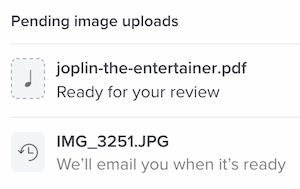
When our system is done, you’ll get an email notification with a link. We’ll also update the “Pending image uploads” section to say “Ready for your review.”
At that point, you can review your scan results.
Tips for successful imports
Our system is powered by sophisticated artificial intelligence algorithms, so it can deal with lots of “cruft” on your scan or photo — much more so than other music-scanning software, in our experience. With that said, here are some guidelines on how to ensure high-quality imports:
- Use typeset music. Our system doesn’t work with handwritten music yet. Maybe someday!
- Use only one page of music per image. Don’t upload photos that contain multiple pages side-by-side; we don’t support that.
- Keep the outer edges of the notation visible. Make sure the notation isn’t cut off.
- Make things relatively straight. We can deal with wavy and slanted images, but results will probably be better if the music in your photo is straight and level.
- Use good resolution. We can deal with low-res images, but higher resolution will get you better results.
If you’re taking photos of music on paper, do the following:
- Put the music on a flat surface and take the photo looking downward.
- Use good lighting.
Don’t do the following:
- Don’t take a selfie of yourself holding the music up in the air.
- Don’t include other music in the background (such as other pages that you don’t want to include in the scan).
- Don’t include multiple pages in the same image. Keep it to strictly one page of music per photo.
- Don’t upload screenshots of ChatGPT sessions. That’s not music notation, it’s text. If ChatGPT has given you tablature, use our separate ASCII tab importer.
Auto rotation
If you’ve checked “Fix rotation” in the upload options, our system will try to automatically detect images that are incorrectly rotated:
- If the music is upside-down or sideways, instead of right-side up, we’ll try to fix the rotation.
- If the music is slightly slanted at an angle, we’ll try to undo the slant.
What kind of PDFs does this support?
Any PDF of sheet music should work, regardless of which program generated it. It doesn’t matter if it was generated by a notation program or not. It’s totally fine to use PDFs in which the notation images are scans or photographs.
I don’t have a PDF, I only have individual photos of music. How can I import multiple photos together as one?
No problem! You can select multiple images when uploading. Just make sure to select them in the right order. We’ll process them together, in the order you specified, resulting in a single slice.
Usage limits
To manage load on our servers, we have limits on scanning usage. They are as follows:
- You can only upload one PDF (or set of images) at a time. Once you’ve uploaded, you won’t be able to upload again until it’s processed and you’ve completed the review process.
- There’s a monthly quota on uploads. This quota depends on which plan you’re in. Please see this page for the current limits. The quota resets on the first of the month, regardless of when you signed up for a paid plan.
- We only process 25 pages at a time. You can select the pages to process. For the Free plan, the limit is 1 page per PDF and only the first 32 bars within that page (but, hey, it’s free).
We’ll probably increase these limits as the system matures.