Generating tablature automatically
Soundslice can automatically generate tablature for any music in your account. Here’s how to do it.
First, open your slice in edit mode and open the Instruments menu:
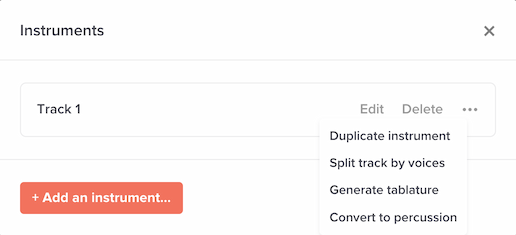
You’ll see all of the instruments used in your music. Find the one to generate tab for, then click the button to the right and select “Generate tablature.”
We’ll show you some options. If you’re a beginner and don’t know what any of it means, just go with the defaults.
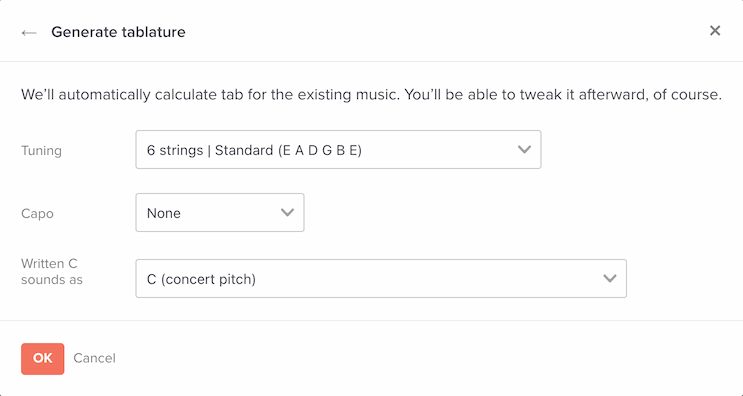
After you click OK, we’ll generate the tablature for that instrument. From then on, it’ll be treated as a tablature instrument.
Tweaking strings/frets in the generated tablature
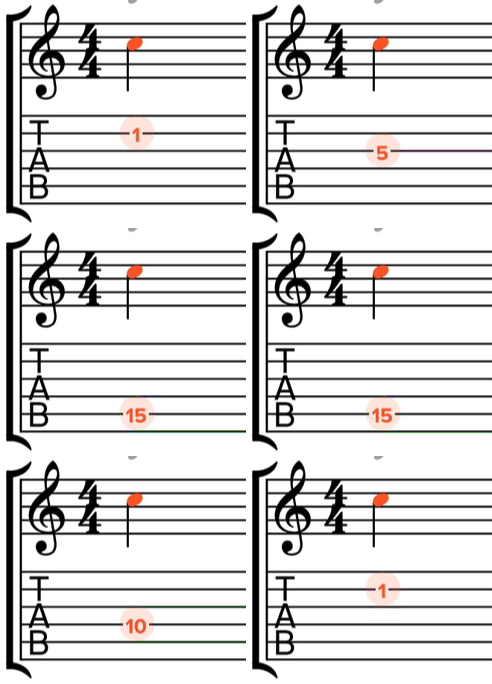
Our system automatically guesses a fingering for each note, but obviously fretted instruments often have multiple places to play the same note. No problem: you can easily change a note’s preferred string using our editor.
To do that, select a note in your tablature and use one of these editing commands:
- Move note up a string, retaining pitch (default keyboard shortcut: Option ⇡)
- Move note down a string, retaining pitch (default keyboard shortcut: Option ⇣)
Notes for music imported via PDF/image scans
If you used our PDF/image scanning feature to import your music, you might need to take an extra step before you generate tablature.
It’s common for published sheet music to use an octave transposition for guitar pieces. That is: the sounded pitch is an octave lower than the written pitch. If this is in the case in the music you scanned, you’ll need to tell our system about that.
You can do this with the instrument assignment tool, which is an aspect of our scanning system. Open the instrument assignment tool, click any staff in the guitar part, then specify the octave transposition. Your slice will be reprocessed (erasing any changes you’ve made since the original scan). At that point, if you generate tablature, our system will have the correct context about the notes.