Viewing PDF/image scan results
After you’ve completed your PDF/image scan review, you’ll see the results page. It looks like this:
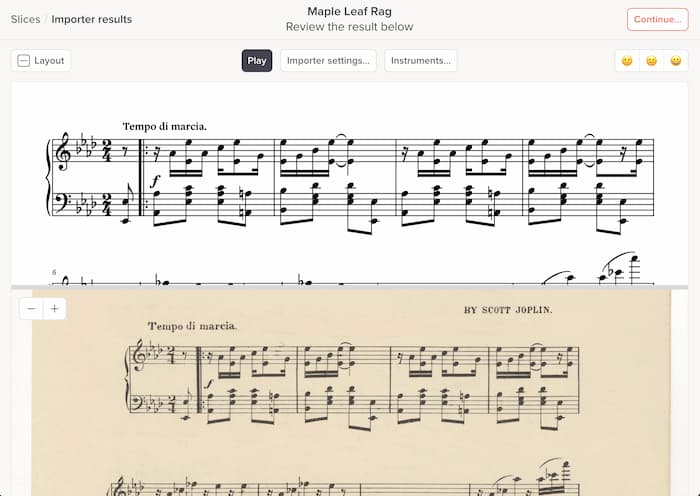
On the top, you’ll see the music displayed by our own graphics engine. On the bottom, you’ll see the original image(s). This lets you quickly see how our system did.
Press Play (or press Spacebar) to hear the music played back. You can also click on any area of the notation (in either the top or bottom panes) to move to that moment in the music.
Note: this is not the full-featured Soundslice interface. It’s just a quick way for you to see results and tweak the scan settings. Our full player has a ton of functionality for working with the music.
Tweaking scan settings
Once you see the music, you might want to change some scan settings to improve the results.
Your options are:
- To specify instrument transpositions, use our instrument assignment tool.
- To change a variety of scanning options, use our importer settings.
- For all other changes, use our notation editor. With hundreds of available editing commands, it lets you edit the notation to your heart’s content.
When you’re done making any tweaks via this page, click the Continue button at upper right:
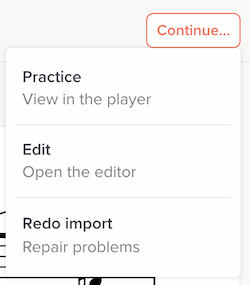
The options here are:
- Practice — loads the music in our player so you can begin learning and practicing.
- Edit — loads the music in our editor so you can make changes.
- Redo import — lets you change the import settings.