Using lists
The slice manager lets you create lists to keep your slices organized. Here’s information on how to use them.
Only customers in a paid plan can create lists. But every Soundslice user gets a free list called “Bookmarks,” whether you pay us or not.
Creating a list
In the slice manager, click “New list” to create a list.
Then give it a name:
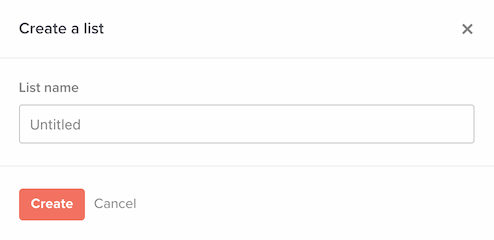
That’s it. You’ll see the newly created list at the top of your slice manager.
Click the list to view its slices (and its sublists).
Adding slices to a list
You can add a slice to a list in a few different ways:
- From your slice manager, click the List icon to the right of any slice you’ve created, then choose the list(s) to add the slice to.
- From a slice page, click “Lists” at the top of the page. Then click the checkbox next to the list you’d like to add it to.
Note: This last method works for any slice you can access and isn’t limited to slices you’ve created yourself. That includes slices that have been shared privately with you and slices in courses you’ve purchased — all are eligible for use in your lists. Nice!
Changing slice order within a list
In a list, you can reorder the slices however you see fit. The main benefit of reordering your slices is that it gives you control over the “previous” and “next” links when viewing a slice in the list (more on this below).
To reorder the slices in a list, click and drag the right edge of any slice up and down.
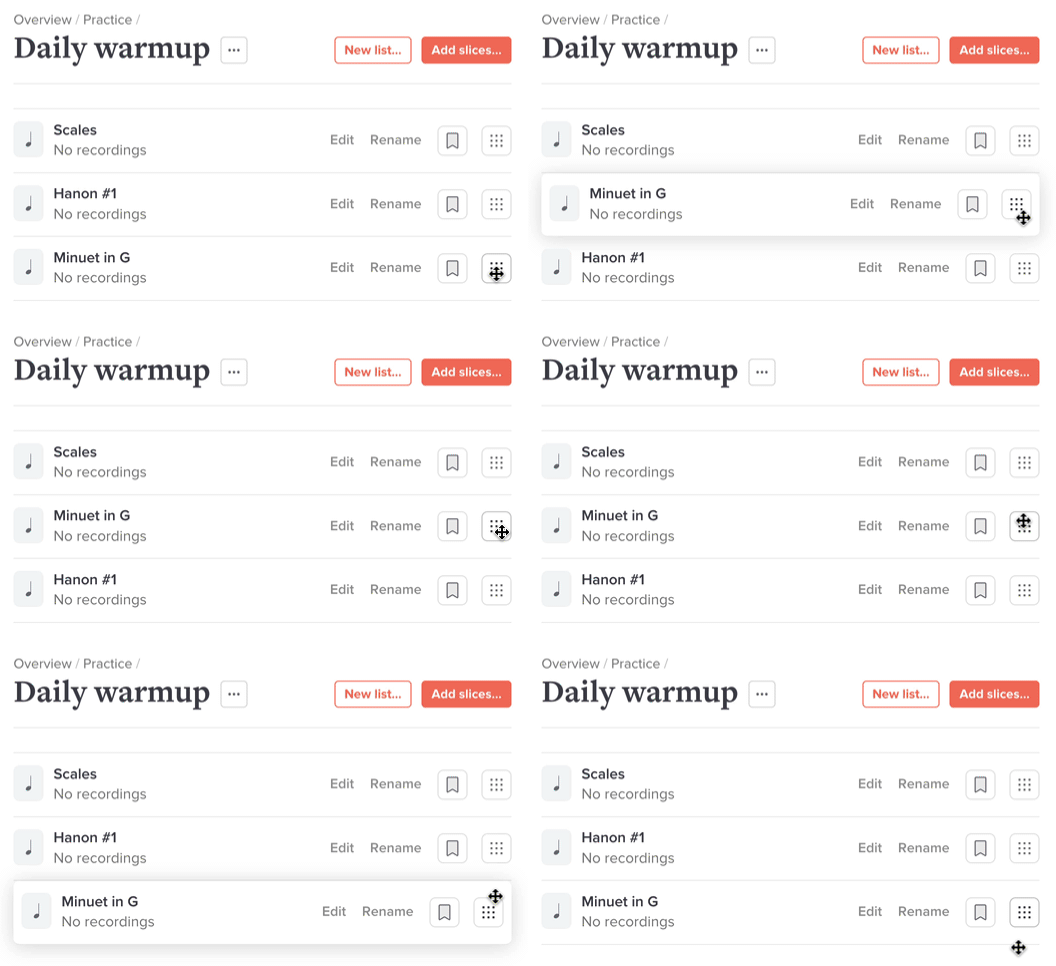
Note: Whenever you add a slice to a list, it will be added to the end of the list by default.
Practicing a list
One of the benefits of lists is: they give you a streamlined way to practice all of the slices within.
View a list, then click one of the slices in it. That slice will be opened in “list mode,” meaning:
- You’ll see the list name at upper left.
- You can click the list name to toggle a sidebar with all the other slices in the list.
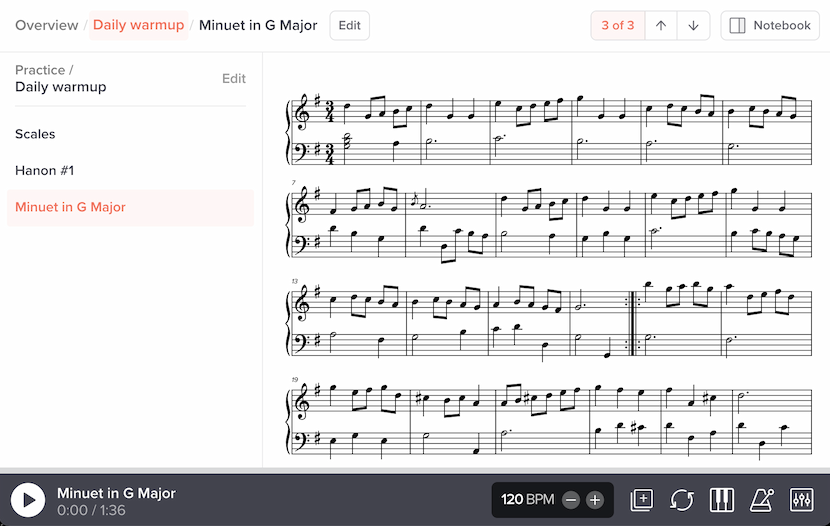
This lets you navigate within your list very quickly. Some details:
- The sidebar includes each slice’s private clips. You can click one to open that clip directly in a single click.
- For any slice you’ve already marked as practiced today, we’ll add a little green checkbox here.
- There’s some light navigation at the top of the page. This is a quick way for you to move forward and backward through your list:
We recommend reordering slices (see above) to take full advantage of the Previous and Next buttons.
Renaming slices in a list
You can rename any slice in a list, to make it easier for you to find and understand. This will only rename it in the context of that list.
This is especially useful if the slice was created by somebody else. For example, perhaps you purchased a course from our store but the course’s slices use names like “Part 4(b)” that don’t make sense in other contexts.
To rename a slice in a list, open the list and click next to the slice:
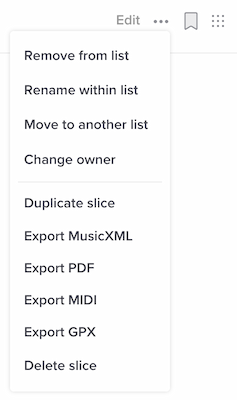
This renaming will only apply in the context of this list, and the new name remains private to you.
To reset the name to its original slice name, click “Rename” and delete the custom name you’d entered.
List headers
You can add headers within lists, for lightweight organization. These will be displayed when practicing your list, and you can click them to show/hide slices.
To add a header, edit the list and click next to one of the slices, then choose “Add header.”
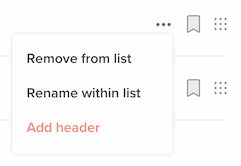
Enter the header text, and you’re done.
From then on, when viewing the list, you’ll see the header in the left sidebar, and you’ll be able to click it to toggle slices:
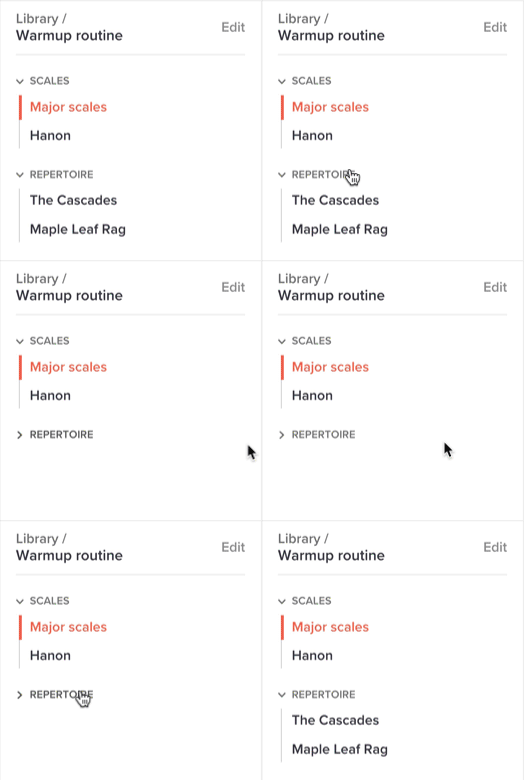
To delete a header, edit the list and click to the right of the header, then select “Delete header.”
There’s no way to rename a header. Just delete it and create a new one.
Sublists (lists within lists)
You can create lists within lists, too. When editing a list, click “New list” and the newly created list will live within the list that you created it from.
Starring a list
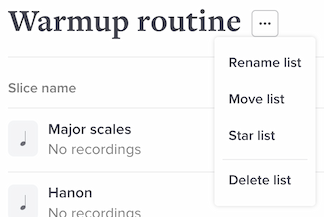
You can “star” a list to mark it as special. This will do the following:
- The list will always appear first when it’s displayed with other lists (for example, in your library).
- Your practice homepage will only include starred lists.
To star a list, go to the list and click next to the list name, then choose “Star list”:
Types of lists
Our lists system is deliberately open-ended. To inspire you, here are some ideas on how you can use it:
- Warm-up exercises
- My daily routine
- Pieces I want to learn
- Pieces I’m working on
- Pieces I’ve mastered (but should freshen up from time to time)
- My guitar repertoire vs. my piano repertoire
- July 9 gig setlist
Is there a limit on how many lists I can create?
No. You’re limited only by your imagination.
What happens if I create a list, then downgrade to the free plan?
Your list will remain viewable to you — but it will be in a read-only state. This means you won’t be able to rename the list, add slices to it, remove slices from it, reorder slices, etc.
What happens if I add somebody else’s slice to a list, then that person stops sharing the slice?
You won’t be able to access the slice anymore, but your notebook contents, such as practice history, will remain.
If I add somebody else’s slice to one of my lists, will the slice’s owner find out?
No — lists are private. Nobody can access your lists.